 vtamp
vtampA music player for the terminal that keeps playing after you detach.
Playback runs in a background server. Open the interface, pick a track, press q to close it, and reattach from any pane later.
Plays local files and live radio from one shared queue, with a JSON CLI and event stream for scripts and agents.
Installbrew install rath/tap/vtamp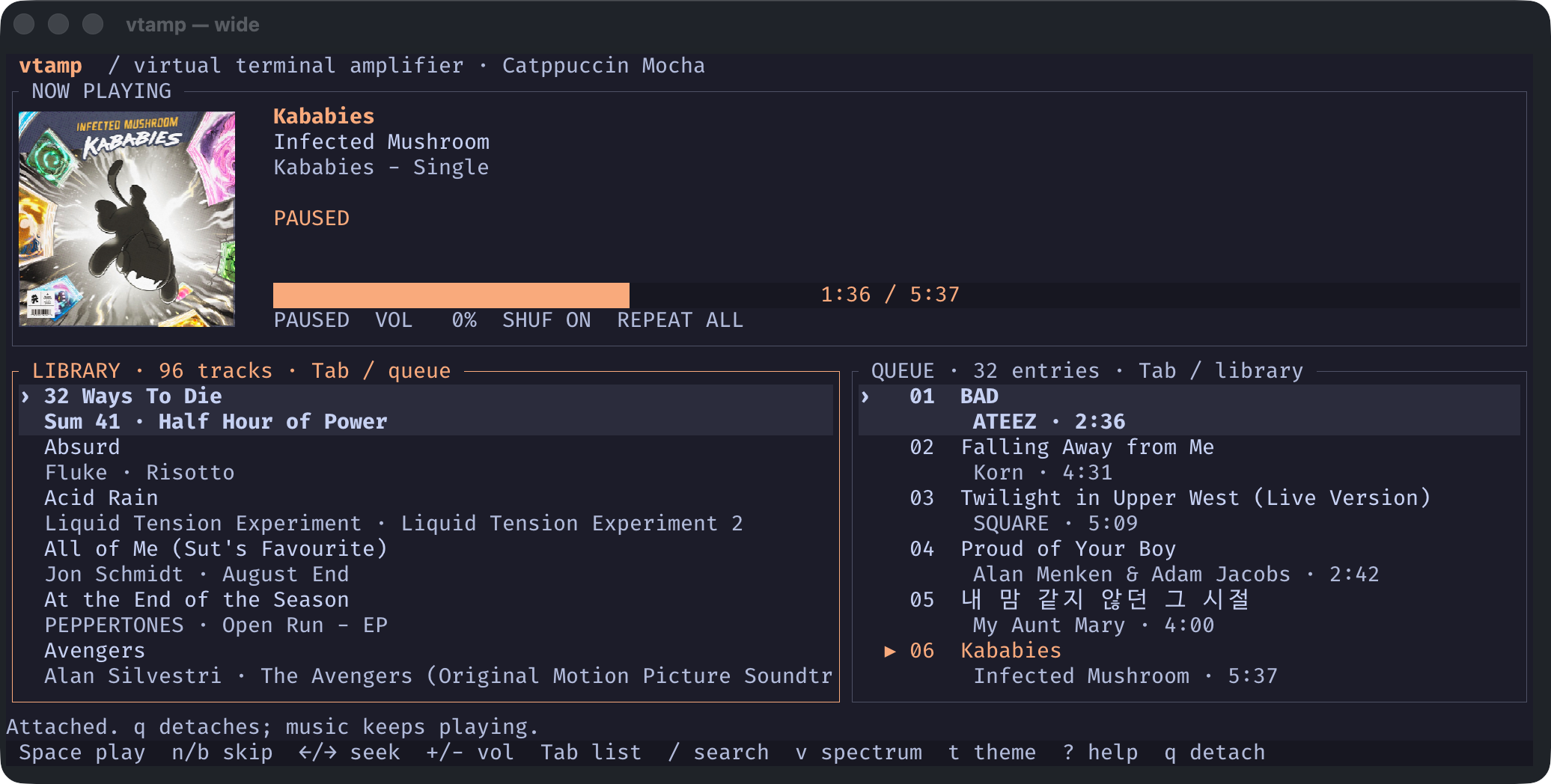
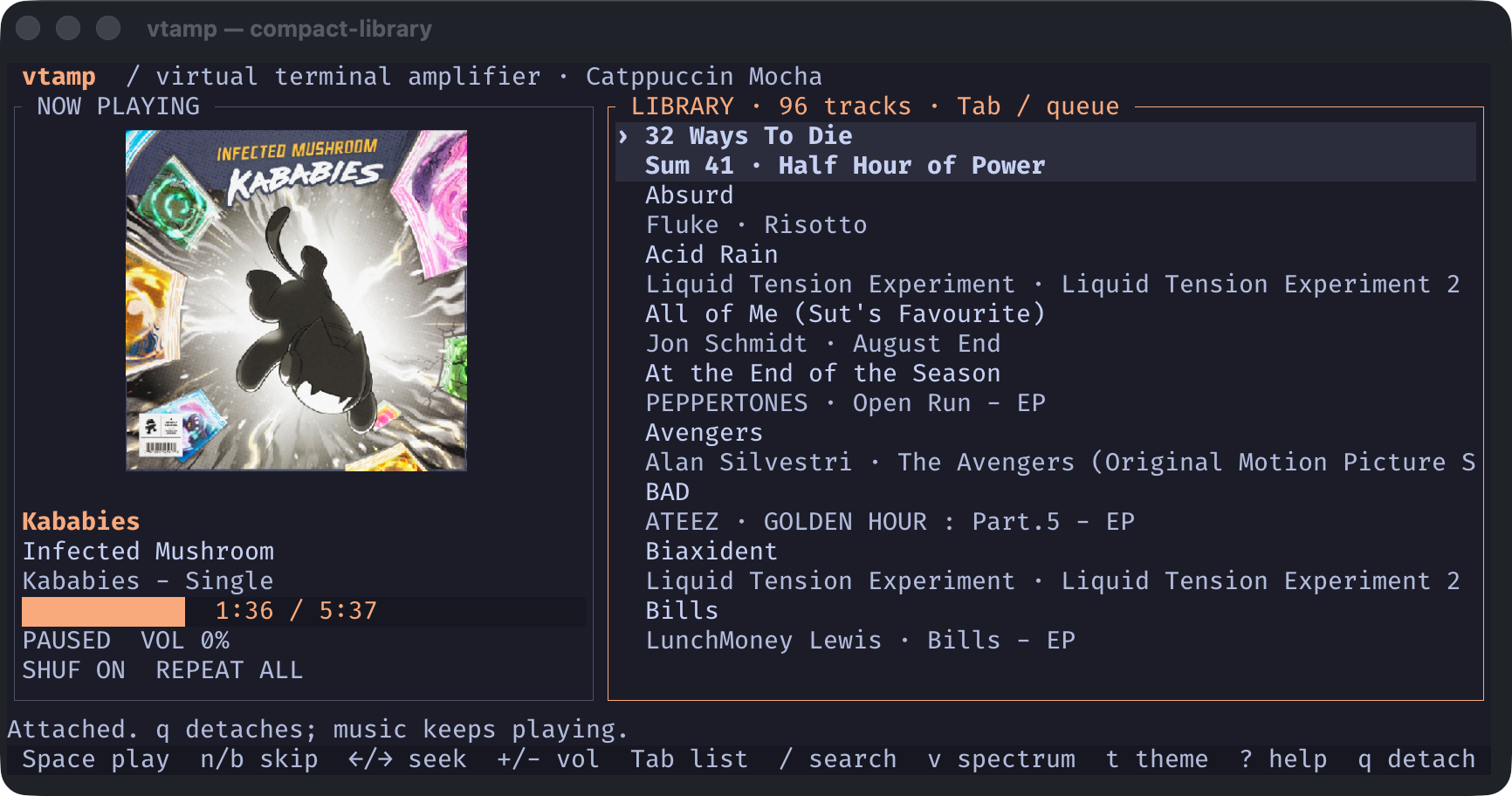
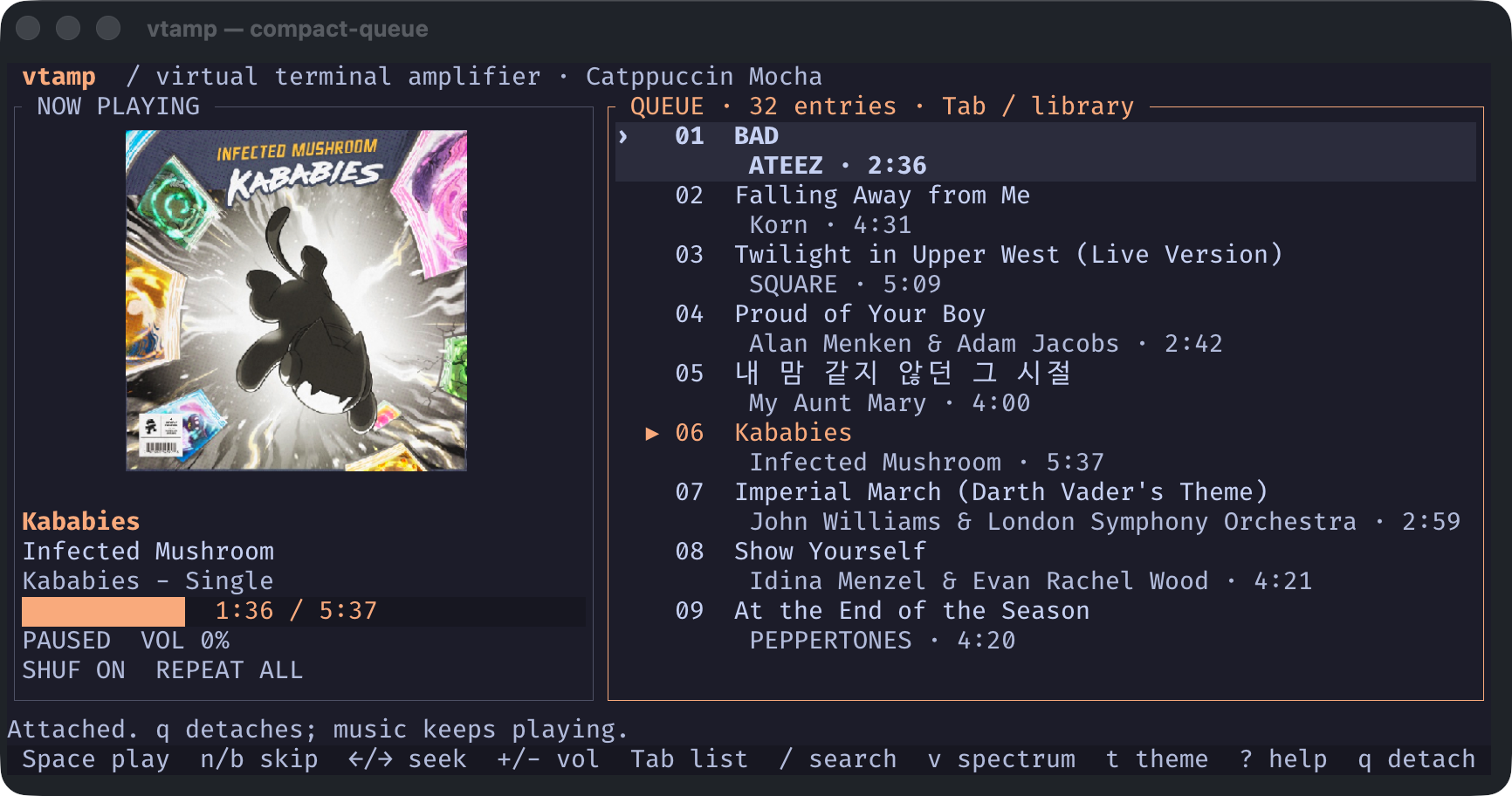
120 × 28 cells. Your library and queue, together.
View full resolutionCaptured in Ghostty + tmux · Catppuccin Mocha · Real library, high-resolution album art
Your soundtrack.
Not another window.
We loved the little player that lived on our desktop. These days, we live in a terminal. The music should feel at home here, too.
Album covers come through in high resolution with Sixel or Kitty graphics, automatically detected when you attach. Ghostty + tmux uses Kitty; Sixel in tmux requires support from both tmux and the outer terminal. Color halfblocks keep the artwork visible when pixel graphics aren’t available.
Make it feel like your terminal. Choose from nine color themes, including cozy Catppuccin Mocha, light Latte, Rosé Pine, and the original green Classic. Press t to preview, then Enter to save for your next attachment. Mocha is the default.
$ vtampDrop in.
A server starts if you need one. Your library, queue, and album art are right there.
qStep out.
The interface closes. The server keeps playing. Get your pane back for the work in front of you.
$ vtampPick up.
Attach again from another pane. Same music. Same queue. Exactly where it is now.
One shared queue. As many interfaces as you need.
Your Mac knows what’s playing.
Reach for the media keys you already know. Play, pause, or skip a track with the player tucked away—even after you detach from tmux.
Your track, artist, and album cover appear in macOS Now Playing. Control Center puts playback within reach, without opening a terminal.
Meet the macOS controlsDepending on your keyboard settings, hold Fn for media keys.
Now playing, in your tmux bar.
Close the player and keep the current track in sight. The optional tmux plugin shows the song title and elapsed / total time, right in your status bar.
Pause and the track stays visible. Stop playback or shut down the server and it disappears. Choose the width, add the artist, and place it wherever you like.
Set up the tmux plugin"work"▶ Training Montage· 0:56 / 3:39Put #{vtamp} in your status format before loading the plugin. No clock or date required.
set -g status-right \
'"#{=21:pane_title}" #{vtamp}'Good with keys.
Great with commands.
Agents can find tracks, line up what plays next, and edit the queue without interrupting the current song.
Preview a batch edit before applying it. Set a sleep timer and let the server handle the rest.
Explore the agent CLILocal files. A local socket. No account, API key, or cloud in the middle.
vtamp now --jsonSee what’s playing.vtamp library search --artist "DAY6" --jsonFind the right tracks.vtamp sleep set 30mStop in 30 minutes.$ vtamp now --json{
"version": 6,
"ok": true,
"data": {
"status": "playing",
"position_ms": 102000,
"remaining_ms": 117000,
"queue_revision": 42
}
}Response excerpt · current track and settings, without the full queue.Press play.
Then get on with it.
Bring a folder of music and a terminal.
vtamp takes care of the rest.
macOS · Homebrew or Rust 1.90+ · local audio files
AAC / ALAC m4a, MP3, FLAC, WAV, Ogg Vorbis